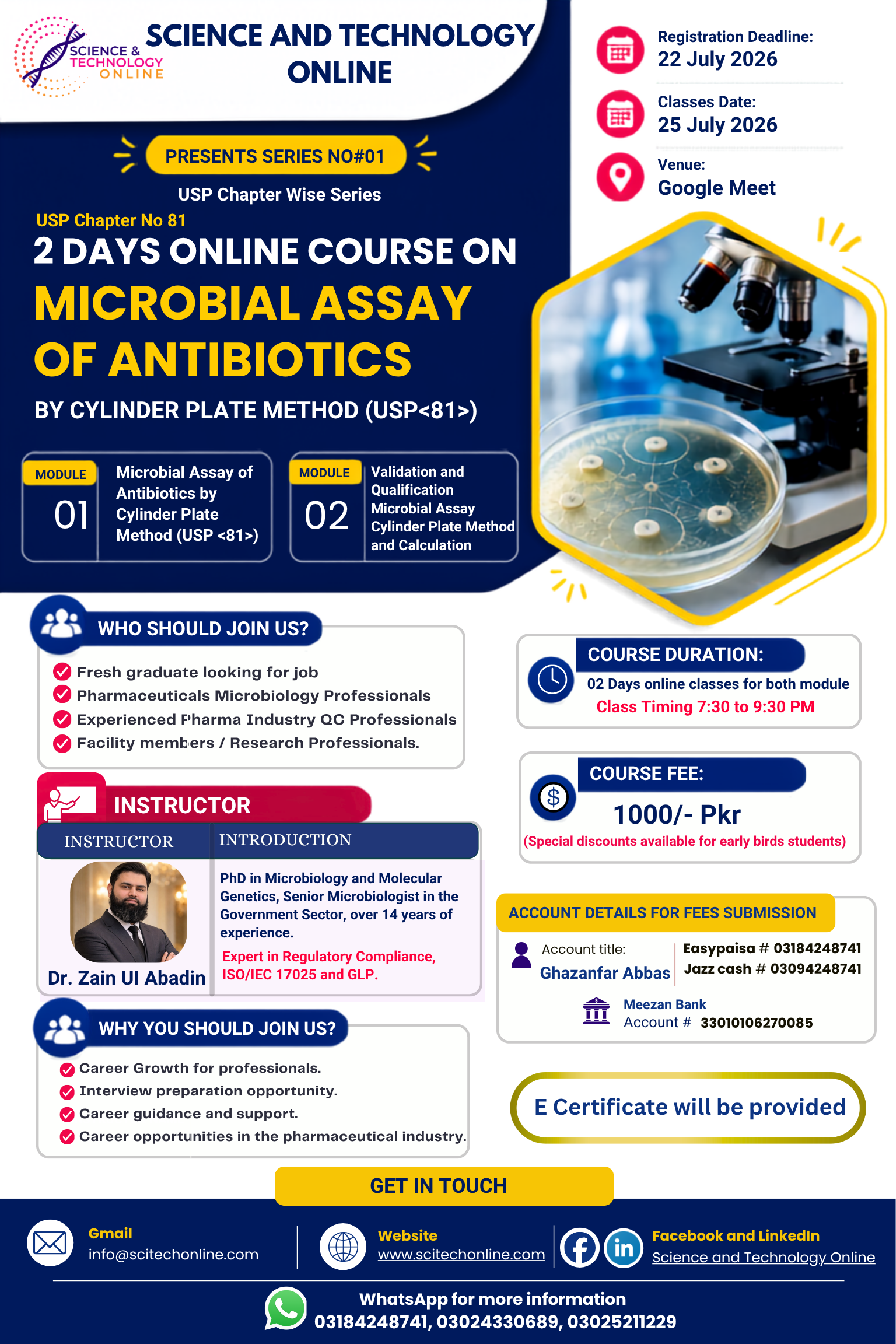
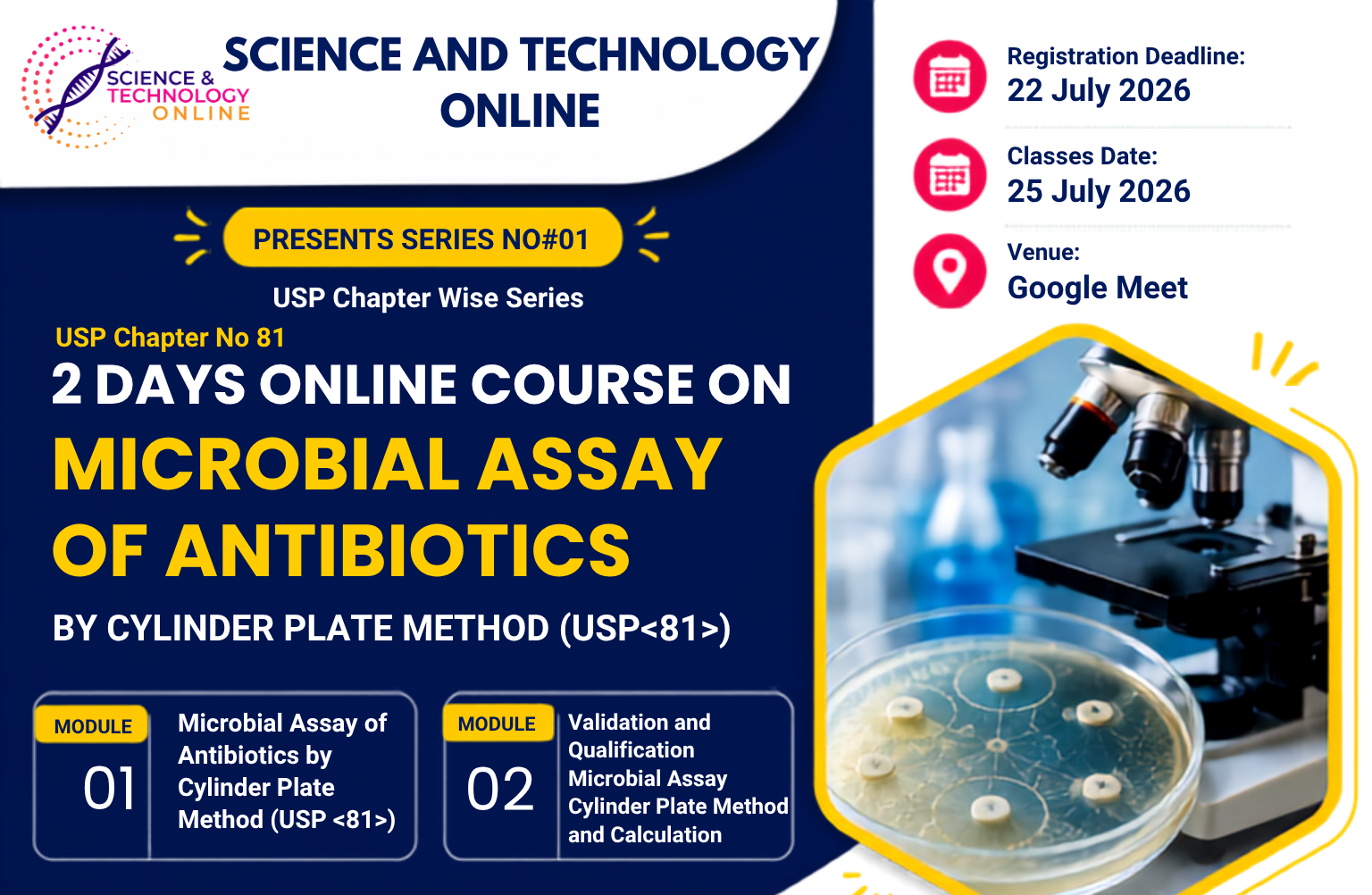

New course addedddddddddd.
Since you’re using Elementor Pro, this is actually very easy and is exactly what Elementor’s Loop Grid was designed for.
Final Result
Whenever you:
- Create a new Post
- Assign it to News, Events, or Announcement
- Publish it
…it will automatically appear on your News & Events page. You won’t need to edit the page again.
Step 1: Create Categories
Go to:
Posts → Categories
Create:
- News
- Events
- Announcements
Step 2: Create Posts
Go to:
Posts → Add New
Example:
Title:
AI Workshop 2026

Category:
Events

Featured Image:
Upload image

Content:
...
Publish.
Step 3: Edit the News & Events Page
Open your News & Events page with Elementor.
Delete any dummy content.
Step 4: Add a Loop Grid
Search for the Loop Grid widget and drag it onto the page.
If Elementor asks you to create a Loop Item template, click Create New.
Step 5: Design the Loop Item
This is the template for each post card.
Add:
- Featured Image (Dynamic)
- Post Title (Dynamic)
- Post Excerpt (Dynamic)
- Post Date (Dynamic)
- Post Category (Dynamic)
- Read More Button
Example layout:
+-------------------------+
| Featured Image          |
+-------------------------+
| Category               |
| Date                   |
| Title                  |
| Excerpt                |
| Read More →            |
+-------------------------+
Save the Loop Item.
Step 6: Configure the Loop Grid
Select the Loop Grid widget.
Set:
Source:
Posts

Post Type:
Posts

Order:
Newest First

Posts Per Page:
6 or 9

Columns:
3
Now it will display all your posts.
Step 7: Filter by Categories (Optional)
If you only want specific categories:
Include By
Taxonomy
Categories

News
Events
Announcements
Now only posts in those categories will appear.